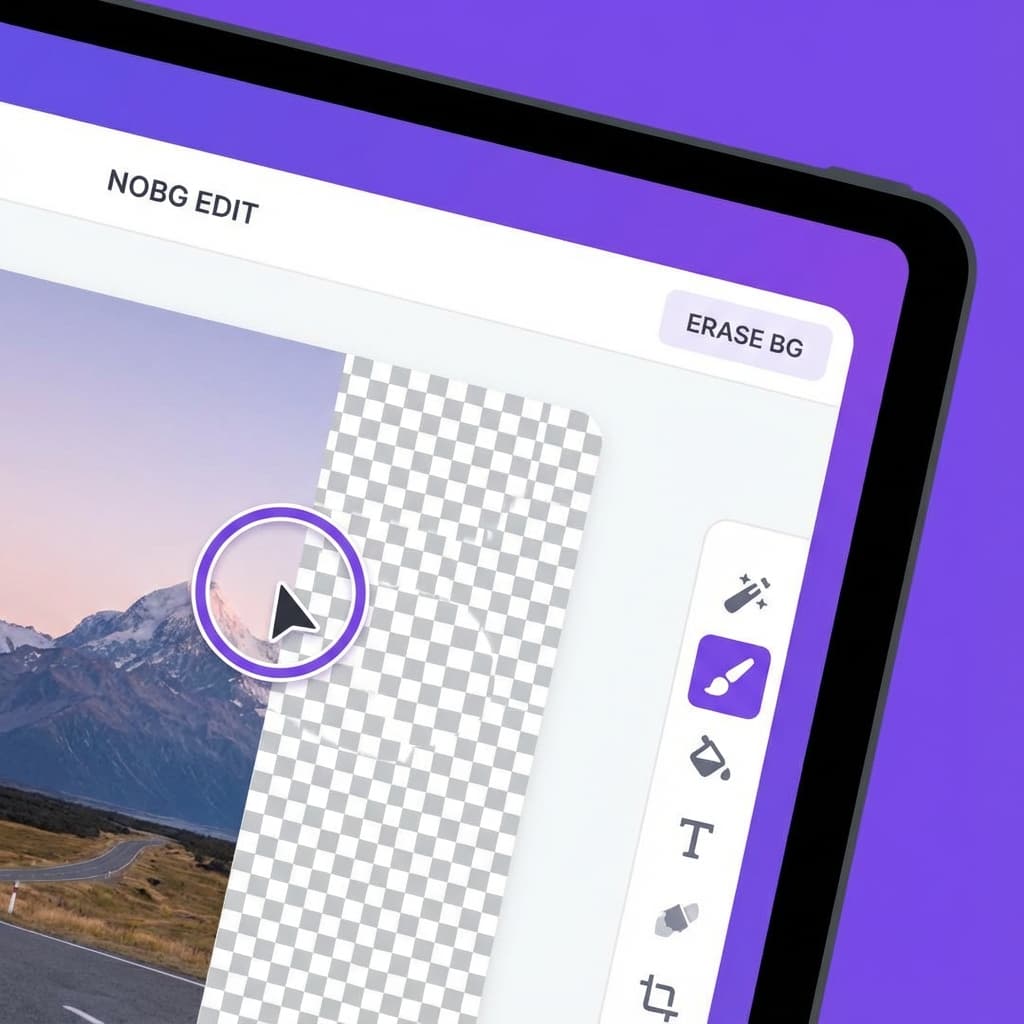
While AI background removal has come a long way, sometimes you need that extra touch of human precision. Whether it's a stray hair, a complex edge, or a part of the subject that was accidentally removed, NOBG's powerful manual editing suite gives you complete control over your final image.
In this guide, we'll walk you through the manual reveal tools, brush settings, and the "Nano Banana" (our nickname for the precision magic tools) that make NOBG the ultimate choice for professionals.
The Toolkit: More Than Just an Eraser
Once your image is processed, clicking "Edit" opens up a workspace designed for detail. Here's what you'll find in your arsenal:
1. Erase & Restore
The core of manual editing.
- Erase (E): Removes unwanted parts of the image that the AI might have missed. Perfect for cleaning up artifacts around the edges.
- Restore (R): Brings back parts of the original image. This is crucial when the AI gets a little too aggressive and removes parts of your subject, like holding a transparent object or intricate jewelry.
2. The Magic Brush (Nano Banana Precision)
We've integrated a "Magic" mode into our brush tools that acts like a smart assistant for your cursor.
- Magic Eraser: Instead of blindly erasing everything, it detects color boundaries. Click and drag near the edge of your subject, and it will snap to the lines, removing the background while keeping your subject intact.
- Tolerance Control: Adjust the "Magic Strength" slider to tell the tool how strict it should be. Low strength for high-contrast edges, high strength for subtle gradients.
3. Auto Mode
For larger areas, the Auto mode works like a flood fill. Click on a color area (like a blue sky patch visible through a window), and it instantly removes all connected pixels of that similar shade.
Mastering the Brush Settings
Precision comes from having the right tool for the job. You can customize your brush to fit the task:
- Brush Size: Scale your brush from a tiny 10px point for pixel-perfect detail to a massive 200px broad stroke for clearing large areas quickly. Use the
[and]bracket keys to adjust size on the fly! - Zoom & Pan: Don't squint at your screen. Use the scroll wheel to zoom in up to 500% (or press
+and-). Hold the Spacebar to grab and pan around your image without switching tools.
Workflow for Perfection
- Start with AI: Let the automatic removal do 90% of the heavy lifting.
- Check the Edges: Zoom in close to your subject's outline.
- Refine with Magic: Switch to Magic Eraser to clean up any "halos" or jagged edges.
- Manual Touch-up: Switch to the standard Manual brush for tricky areas like hair or fur where you want a specific artistic look.
- Restore Missing Details: Did the AI erase a logo or a prop? Use the Restore tool to paint it back in seconds.
Why Local Editing Matters
All these tools run directly in your browser. Unlike cloud-based editors that lag with every click, NOBG's manual tools respond instantly. There's no server round-trip, meaning your "Nano Banana" precision happens in real-time, with zero latency.
Ready to perfect your images? Upload a photo and try the manual tools today!